Updated: 2026-09-28

Victor Bobrov Written by: Victor Bobrov

How to repair PST file

PST Repair Kit is designed to repair damaged Microsoft Outlook PST files. Use this Outlook recovery tool or this online PST recovery service from any device (phone, tablet, laptop). Always work with a backup copy of the .pst file.

The repairing of corrupted PST files of Microsoft Outlook - step-by-step instruction:

  1. Download PST Repair Kit here: https://www.outlookpst.repair/downl/PSTRepairKitInstall.exe
  2. Install PST Repair Kit
  3. Start PST Repair Kit
  4. Select corrupted *.pst file
  5. Press Next
  6. Select Recovery mode
  7. Press Next
  8. Preview and select the recovered content from damaged PST file
  9. Press Next
  10. Specifying the path where to save the recovered data
  11. Press Next
  12. Select Save as PST file
  13. Press Save button
PST Repair

How to repair Microsoft Outlook PST file corrupted online

To recover a corrupted .PST file containing Outlook emails and contacts, you can use an online service and get the recovered Outlook PST file in just a couple of clicks:

  1. Go to https://www.outlookpst.repair/
  2. Select the corrupted Outlook file
  3. Wait for the upload and recovery of Outlook PST file to complete
  4. Preview the recovered emails and contacts for free
  5. Pay $10 to a Microsoft Outlook Recovery
  6. Download the recovered .PST file
4.9 (17)
Rating
(15)
(2)
(0)
(0)
(0)

Outlook PST Repair Tool

How to repair PST files when Microsoft Outlook data is corrupted?

A damaged PST file can prevent Microsoft Outlook from opening a mailbox, loading folders, displaying messages, or accessing contacts, calendar entries, tasks, notes, and attachments. Corruption may occur after an unexpected Windows shutdown, disk errors, interrupted file synchronization, storage failures, antivirus activity, oversized data files, or incorrect processing by another application. When the built-in Outlook recovery functions cannot restore the mailbox, a specialized pst repair tool can analyze the damaged data structure and extract readable Outlook objects into a new file.

PST Repair Kit is a specialized Microsoft Outlook repair tool designed to recover information from corrupted Microsoft Outlook PST and OST files. Instead of modifying the damaged source file directly, the software reads its internal data structures, identifies recoverable mailbox objects, reconstructs folders and messages, and saves the extracted information to a new PST file or to separate files. This approach helps reduce the risk of additional damage to the original Outlook data file.

MS Outlook PST repair tool

Outlook PST Repair Tool for damaged PST and OST files

An outlook pst repair tool is useful when Outlook reports that a data file cannot be opened, the folder set cannot be displayed, the PST file is not recognized, or ScanPST cannot complete the repair. PST Repair Kit analyzes the damaged file independently from Outlook and attempts to locate valid records even when parts of the original PST structure are no longer readable.

Microsoft Outlook PST files contain considerably more than email messages. A mailbox can include folders, subfolders, contacts, appointments, meetings, tasks, notes, message properties, attachments, and other MAPI-related information. An outlook pst file recovery tool therefore needs to reconstruct both individual objects and the relationships between them. PST Repair Kit scans the source file, identifies recoverable Outlook items, and rebuilds the mailbox hierarchy so recovered data can be stored in a usable structure.

The recovery process can also be applied to OST files. Although an OST file is normally an offline synchronized copy of an Exchange, Microsoft 365, or other supported mailbox, it may contain locally available information that is no longer accessible from Outlook. The software can analyze a damaged OST file, extract recoverable items, and convert the recovered information into PST or individual message and contact files.

How to repair PST file in Outlook?

How to repair PST file without changing the original data?

The safest way to repair pst file data is to avoid repeatedly opening, editing, or overwriting the damaged source. Before recovery, create a copy of the corrupted PST file and perform all repair operations on that copy whenever possible. This is especially important when the corruption may be related to a failing hard drive, SSD, network storage device, or unstable file system.

The recovery workflow with PST Repair Kit consists of several stages. The user selects the damaged PST or OST file, starts an analysis, reviews the objects detected by the program, chooses the required folders or items, and specifies how the recovered data should be saved. The original source file remains separate from the newly reconstructed output, allowing the user to preserve the damaged file for additional recovery attempts if necessary.

Microsoft Outlook PST File Repair Tool with mailbox structure recovery

A professional outlook pst file repair tool should reconstruct more than individual email bodies. Folder hierarchy is important because Outlook mailboxes frequently contain hundreds of folders organized by project, customer, date, department, or account. PST Repair Kit attempts to preserve the original mailbox folder tree during extraction so recovered messages remain associated with their corresponding folders whenever sufficient structural information is available.

The program can recover common Outlook objects including email messages, attachments, contacts, calendar records, tasks, and notes. Message content may be stored as plain text, RTF, or HTML, and the recovery engine processes the available data according to the information that remains readable inside the damaged PST or OST file.

Attachments are processed separately from message text because attachment data may occupy different parts of the Outlook storage file. As a result, a message may sometimes remain recoverable even when one of its attachments is damaged, or an attachment may be recoverable despite corruption affecting other mailbox records.

Outlook PST File Recovery Tool for ANSI and Unicode PST files

PST Repair Kit supports Outlook data files created using both ANSI and Unicode PST formats. Older Microsoft Outlook releases commonly used ANSI PST files, while newer versions use Unicode PST files that support larger mailbox sizes and modern character sets. The internal organization and size limitations of these formats differ, which is why an outlook pst file recovery tool must recognize the format before reconstructing data.

The software supports PST and OST files associated with multiple generations of Microsoft Outlook, including Outlook 97, 98, 2000, 2002, 2003, 2007, 2010, 2013, 2016, 2019, 2021, and Outlook for Microsoft 365. This makes the recovery process applicable both to legacy Outlook archives and to data files created by more recent installations.

Large Outlook data files can be particularly difficult to process because corruption may affect only a small region while the rest of the mailbox remains readable. PST Repair Kit is designed to scan large PST files and identify recoverable data instead of assuming that the entire mailbox is unusable because one internal structure is damaged.
Outlook PST File Recovery Tool for ANSI and Unicode PST files

What to do when ScanPST.exe cannot repair the PST file

Microsoft provides Inbox Repair Tool, commonly known as ScanPST.exe, with desktop versions of Outlook. It should normally be one of the first options tried for a moderately damaged PST file. Make a backup of the PST file, close Outlook, locate ScanPST.exe for the installed Office version, select the data file, and allow the utility to scan and repair detected structural errors.

However, ScanPST may fail when corruption is extensive, when important internal tables are missing, or when the program cannot correctly interpret damaged records. Repeated repair attempts can also leave users with a PST file that opens but contains missing folders or objects. In these situations, dedicated outlook pst repair software can perform a separate extraction of readable mailbox information instead of relying only on the original PST indexes.

PST Repair Kit can therefore be used as an outlook pst fix tool after the built-in Inbox Repair Tool has failed or produced incomplete results. The application scans the damaged storage independently and allows the user to preview the data that can potentially be recovered before saving the reconstructed mailbox.

Recover Outlook data to PST, MSG, EML, and VCF

Recover Outlook data to PST, MSG, EML, and VCF

Recovery does not always require creating another PST file. PST Repair Kit provides several output methods depending on how the recovered information will be used. Mailbox data can be reconstructed into PST format or exported as individual files.

Email messages can be saved as MSG or EML files. MSG is useful when preserving Outlook-specific message information is important, while EML provides broader compatibility with applications capable of reading standard email files. Contacts can be exported in VCF format, making the recovered contact data easier to import into compatible address books and contact-management applications.

This flexibility makes the application useful both as outlook pst file repair software and as a data extraction utility. For example, if a severely damaged PST cannot be reconstructed into a complete mailbox, individual messages or contacts may still be recovered and saved separately.

Selective recovery from corrupted Outlook files

A damaged PST file may contain thousands or even hundreds of thousands of objects, although only a few folders may actually be important. PST Repair Kit includes a browser for recovered PST and OST content so users can inspect the detected mailbox structure before exporting data.

Selective recovery can reduce output size and simplify subsequent Outlook imports. Instead of restoring every available folder, the user can choose only important mail folders, contacts, projects, or other objects. This is particularly useful with large corporate archives or PST files accumulated over many years.

The browser also helps verify whether required information has been detected before the final export operation begins. This makes the application more practical as a Microsoft Outlook repair tool because users can evaluate the recovery result instead of immediately creating a large output file without knowing what was found.

Repair password-protected and encrypted Outlook data files

Password protection does not necessarily prevent structural analysis of an Outlook data file. PST Repair Kit can process supported password-protected PST and OST files and attempt to extract readable Outlook data from their internal structures.

The application can also analyze encrypted and unencrypted Outlook storage files supported by the recovery engine. Actual recovery results depend primarily on which portions of the source file remain intact. Physical disk damage or overwritten data cannot be reconstructed simply by repairing PST indexes, so the original storage device should be checked when file corruption appears together with hardware or file-system errors.

Repair password-protected and encrypted Outlook data files

OST to PST conversion

PST Repair Kit can also operate as an OST-to-PST conversion solution. An OST file is usually linked to an Outlook profile and server mailbox, but there are situations where the original account is no longer available while the local OST file still contains valuable information.

The program can scan the OST file, extract available folders and Outlook objects, and save the recovered information into PST format. The resulting PST can then be handled separately from the original offline storage file.

This capability is especially useful after Exchange account migration, profile corruption, server failure, or loss of access to the original mailbox where usable information remains inside a local OST file.
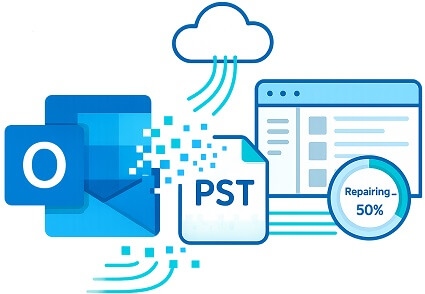
Key technical capabilities of PST Repair Kit

Key technical capabilities of PST Repair Kit

PST Repair Kit provides recovery and extraction functions for damaged Microsoft Outlook storage, including:

  • Recovery of data from corrupted PST and OST files.
  • Processing of ANSI and Unicode Outlook data files.
  • Support for large PST and OST files, including files larger than 2 GB.
  • Recovery of email messages and mailbox folders.
  • Extraction of email attachments.
  • Recovery of Outlook contacts, calendar records, tasks, and notes.
  • Processing of plain-text, RTF, and HTML messages.
  • Reconstruction of the original Outlook folder hierarchy when structural information remains available.
  • Extraction of data from damaged OST files.
  • OST-to-PST conversion.
  • Saving recovered email as MSG and EML files.
  • Saving recovered contacts as VCF files.
  • Selective recovery of specific folders and Outlook objects.
  • Processing of supported password-protected Outlook data files.
  • Processing of encrypted and unencrypted PST and OST files.
  • Recovery after unsuccessful or incomplete ScanPST.exe processing.
  • Splitting large resulting PST files into smaller parts when required.
  • Wizard-based recovery intended to simplify file selection, analysis, preview, and export.
  • Drag-and-drop support for selecting Outlook data files.
  • Operation on supported Microsoft Windows systems, including Windows 10 and Windows 11.

How to repair PST files step by step

Users searching for how to repair pst files should start with the least destructive recovery method. First, close Microsoft Outlook completely and create a backup copy of the damaged PST file. Do not perform recovery on the only available copy of an important mailbox.

Next, try Microsoft's ScanPST.exe utility if the corruption appears limited and the PST file is still recognized. After ScanPST finishes, open Outlook and verify not only that the mailbox opens, but also that important folders, messages, contacts, appointments, and attachments remain available.

If Outlook still cannot open the file, ScanPST terminates with an error, or important objects are missing after repair, use PST Repair Kit to perform a separate analysis of the damaged file. Select the source PST, allow the outlook pst repair tool to scan it, review the recovered folder tree, select the required objects, and save the data to a new PST or to individual MSG, EML, and VCF files.

Finally, keep the recovered file separate from the corrupted source until the recovery result has been fully verified. Open the new PST in Outlook, inspect several folders, check recent and older messages, verify attachments, and confirm that contacts and calendar information are usable before removing any backups.

Outlook PST File Repair Software for complex corruption

Severe Outlook corruption often requires extraction rather than a simple modification of the damaged PST header or indexes. A specialized outlook pst file repair software solution scans deeper into the storage file and attempts to identify individual records that remain readable even when the normal mailbox structure has been partially destroyed.

PST Repair Kit is designed for this type of scenario. It can be used by home users recovering a single Outlook mailbox as well as administrators who regularly encounter damaged PST or OST files on Windows computers. The wizard-driven interface reduces manual configuration while still providing access to recovered folders and individual objects before export.

When the objective is to recover the greatest amount of usable Outlook information rather than merely make the damaged file open again, an outlook pst file repair tool that supports preview, selective extraction, multiple output formats, and folder reconstruction provides a more controlled recovery workflow.

System requirements:

  • Windows 98/Me/2000/XP/Vista/7/8/10/11 or Windows Server 2003/2008/2012/2016 and above
  • Desktop version of Microsoft Outlook 98, 2000, 2002, 2003, 2007, 2010, 2013, 2016, 2019, 2021 and Outlook for Microsoft 365 must be installed on the user's computer at the time of conversion (excluding Outlook for Office 365, Outlook for iOS and Outlook for MacOS).


Download

download Download

from our website

Real customer reviews from TrustPilot

Verification Sources, Technical Credentials, and Outlook Data Protection

File Master publishes and manages this page. It links Outlook PST Repair information to an identified technical expert, official company records, legal policies, and customer support channels. These materials allow visitors and search engines to verify the source, ownership, and responsibility behind the recovery instructions.

Technical Author and Validation Specialist

Victor G. Bobrov
Victor G. Bobrov
Chief Software Engineer and Microsoft Outlook Data Recovery Specialist

Victor G. Bobrov created and technically validated this Microsoft Outlook recovery guide. The page’s structured markup also names him as the software developer behind Outlook PST Repair Kit.

Verified Business Details

The references below identify the software publisher and verify its official business profile:

  • Provider overview: File Master
  • Registered company: File Master LLC
  • Support resources: File Master support center

Protecting Microsoft Outlook Data During Recovery

  • For confidential Outlook information, choose the Windows desktop version of Outlook PST Repair Kit. Processing occurs locally, allowing recovered mailbox and calendar data to remain on the user’s computer.
  • First create a duplicate of the damaged .PST file before inspecting, testing, or restoring it. Perform recovery on the copy and store the untouched original securely.
  • When software installation is not practical, the Online Outlook PST Repair Service enables browser-based recovery on supported computers, phones, tablets, and operating systems.
  • License terms, privacy information, and support documentation are readily available, helping customers review data-handling practices and request assistance when necessary.

Customer's reviews and ratings

Excellent page

jm 01-11-2026

very good

billy 10-15-2025

good

cesar 07-01-2025

brilliant

mara 06-03-2025

highly recommended

guillermo 06-02-2025

Good

G 03-30-2025

super

Angélica 02-27-2025

good job

DANA 02-24-2025

excellent

yei 09-30-2024

A quick and easy way to repair.

Maria

good service

kuciaq

highly recommended

cvh

okay

MEMO

My .OST file cannot be converted to .pst file because it damaged.
Here is 2-in-1 tool: repair and converter.
It is my lifesaver!

Hurma

good

hitesh

excellent

julian

Excellent

Diana Arevalo

Prices

Personal

License


$ 39


Buy now

Business

License


$ 59


Buy now

Site

License


$ 99


Buy now

Repair

Online


$ 10


Online
PayPro Global

PayPro Global (PayPro Global, Inc., 250 The East Mall street, Etobicoke, ON Canada, M9B 0A9) is the fastest growing eCommerce company that develops customized solutions to help software producers to easily and effectively sell software online. PayPro Global supports more than one hundred currencies, all major credit cards, and a wide variety of payment options. PayPro Global offers efficient customer support 24/7 and provides personal attention to customers having special requirements.

Victor G. Bobrov, Senior Software Engineer.

MCSD, MCDBA

A recognized expert in customer storage in PST/OST-files of Microsoft Outlook. A hands-on specialist in recovering corrupted Microsoft Outlook databases with over 25 years of experience.

  • 20+ years in corrupted file recovery
  • Desktop and online repair systems
  • MCSD / MCDBA certified

About the expert

  • Studied at the Aviation Institute in aircraft engine CAD/CAM/CAE
  • Part of the team developing an innovative AL-31 engine diagnostic system for technical condition analysis
  • Development, implementation, and support of police station automation systems in 25 US states
  • From 2002 to present, development of programs and cloud services for recovering damaged files

Certifications

Microsoft Certified Solutions Developer - MCSD

Microsoft Certified Database Administrator - MCDBA

  • Microsoft Certified Database Administrator certificate
  • Microsoft Certified Solutions Developer certificate

About File Master LLC

GOLD Partner

File Master LLC is a Microsoft Gold Certified Partner

This certification demonstrates our commitment to technical excellence, deep expertise in Microsoft technologies, and the ability to deliver high-quality solutions for Microsoft Access database recovery and file repair.

Victor G. Bobrov, leading specialist at File Master
✦ Company specialist

Victor G. Bobrov

Victor G. Bobrov works with File Master on file structure analysis, damaged file recovery, database recovery and online repair services.

Contacts

Pacific Business Centre, #101 - 1001 W. Broadway Suite 381.
Vancouver, BC V6H 4E4, CANADA
Email: email

Frequently Asked Questions

01 FAQ #

Question:

Outlook 2019 stopped recognising the PST file after the USB drive was disconnected

Answer:

This error means that Outlook cannot recognise the internal structure of the Personal Store Folder: the PST file header, folder tables, or service blocks may have been corrupted during the power outage. First, create a byte-for-byte copy of the corrupted file and stop working with the original on the USB drive. Next, check the external drive using Windows tools and copy the PST file to a healthy local drive.

Next, open the copy in the PST Repair Kit on a Windows computer, run an analysis, select the desired emails, contacts, attachments, tasks, and appointments, and then save the recovered data to a new .pst file. You should connect the new file to Outlook 2019 using the "Open Outlook Data File" feature, without replacing the damaged original.

If you don't have a Windows computer available, upload a copy of the PST file to the online service https://www.outlookpst.repair/, wait for it to be processed, and download the recovered archive in PST format.

02 FAQ #

Question:

Outlook for Microsoft 365 detected errors after syncing a PST file via OneDrive

Answer:

The PST file is constantly changing while Outlook is running, so cloud synchronisation may simultaneously write different versions of the same data blocks and compromise the database's integrity. Completely close Outlook, Teams, and any other programs that can access email data, then pause OneDrive and copy both versions of the PST file to a regular local folder outside the cloud directory.

Next, analyse the larger copy of the PST file using the PST Repair Kit and save the recovered items to a separate new PST file.

An alternative method for recovering a corrupted PST file on a computer, phone, or tablet is to upload a copy to the online cloud service https://www.outlookpst.repair/ and download the recovered .pst file. Going forward, store the active PST file only on your local drive, and place closed backup copies—created after Outlook has closed—in OneDrive.

03 FAQ #

Question:

ScanPST fails to recognise the corrupted PST file and freezes indefinitely

Answer:

This behaviour usually occurs when physical disk errors have affected the PST file header, the block allocation table, or large segments of the mail database. Do not run repeated scans on the original disk: first create an image of the drive or copy the PST file to a healthy disk using a program capable of skipping unreadable sectors.

Next, open the corrupted PST file in the PST Repair Kit, which can scan the damaged copy, display the folders it finds, and save the recoverable emails, contacts, notes, and calendar items to a new PST file.

Do not save the result to the same old hard drive. If you only have a macOS, iOS, Android, or other device, upload the copied PST file to the cloud service https://www.outlookpst.repair/ and receive the recovered archive in .pst format.

04 FAQ #

Question:

Outlook 2021 won't launch after a Windows 11 update

Answer:

A Windows update may have changed the access permissions for the folders, interrupted the writing to the PST file during a reboot, or corrupted the Outlook profile settings. Therefore, you must first separate the Outlook issue from the data file issue. First, create a new email profile through the Windows Control Panel and try running Outlook without connecting the old PST file. If the new profile opens normally, back up the corrupted file and check it using the PST Repair Kit. Open the original copy of the file in the PST Repair Kit, review the tree of recovered folders, and save the result to a new PST file. Next, connect the new PST file to your working Outlook profile.

Users who temporarily only have access to an iPhone or iPad running iOS can upload the PST file to https://www.outlookpst.repair/ via a web browser and download the recovered PST file. The resulting archive should then be opened on a working computer running Outlook 2021 or a compatible version of Outlook.

05 FAQ #

Question:

A PST file on a NAS network storage device no longer opens in Outlook 2013

Answer:

A PST file is not designed for continuous operation via an unstable network folder: even a brief connection interruption during writing can leave transactions incomplete and indexes corrupted. First, copy the file from the NAS to a local NTFS drive on your computer and ensure that your account has full access to the copy. If Windows reports read errors during copying, first check the status of the NAS drives and save as complete a copy as possible without modifying the original.

To perform a deep data recovery, open the local PST file in the PST Repair Kit, select the detected mail folders, and save them to a new PST file.

If your Windows work computer is unavailable, you can restore the file using the cloud service https://www.outlookpst.repair/ from a MacBook, Android tablet, or other device. After restoration, keep the working PST file on a local drive and use the NAS only for backups of the closed file.

06 FAQ #

Question:

The recovered file was empty after running ScanPST

Answer:

ScanPST primarily repairs the logical structure, so in cases of severe corruption, it may remove references to problematic folders without actually deleting the data blocks containing the emails. Locate the original PST and any backup files that may have been created by the tool before the repair, and do not perform any further operations on the sole remaining copy. Next, check the "Recovered Personal Folders" folder, the"Lost and Found" items, previous versions of Windows, and disk backups. If the messages you need are not there, you should analyse the original corrupted PST file or an earlier copy of it, rather than just the already cleaned-up file.

Use the PST Repair Kit to perform a full scan of the original file, review the found messages and attachments, and then export the selected data to a new PST file.

The online service https://www.outlookpst.repair/ can also process the original file from any device and save the recovered result in .pst format. Connect the new archive separately to compare its contents with an empty file created by ScanPST.

07 FAQ #

Question:

Error 0x80040116 and cyclic redundancy check on an external SSD

Answer:

A cyclic redundancy check (CRC) error indicates not only damage to the PST file's structure but also problems reading the storage medium itself; therefore, you should not attempt standard file repair on an external SSD. Replace the cable and port, check the drive's SMART status, and then create a disk image or copy as much data as possible to a healthy drive. You can then check the recovered copy using ScanPST, but running the CHKDSK /F command in CMD.exe on the problematic drive itself is not recommended before creating an image, as the operation may alter the file system. Error code 0x80040116 often occurs when Outlook cannot read the service tables or reconcile them with the file's actual contents.

Once you have a stable copy of the PST file, restore it using the PST Repair Kit and save the recovered items to a new PST file on a different drive. If a copy has already been created but the Windows program is unavailable, send the file to https://www.outlookpst.repair/ from your computer, phone, or tablet. Do not continue to use the external SSD drive for your active mailbox database even after a successful recovery.

08 FAQ #

Question:

Fatal Error 80040818 When Restoring an Outlook 2007 Archive

Answer:

An RDP session termination by itself does not always corrupt the file; however, a simultaneous server failure during the write operation could have left an incomplete table or an incorrect block chain. Make sure Outlook is actually closed and that there are no remaining OUTLOOK.EXE processes, the search indexer, or a backup program holding the PST file in Task Manager. Create a copy of the file and try a different version of ScanPST installed with Outlook 2007, after first saving the original to a separate folder. You can also temporarily disable indexing only for the folder containing the test copy to prevent concurrent access.

If error 80040818 persists, open the copy of the PST file in the PST Repair Kit, run an independent scan, and save the recovered mail folder structure to a new PST file.

On the online service https://www.outlookpst.repair/, you can recover the same file without accessing the RDP server, using a web browser. This can be done on any device: a phone, tablet, or laptop. It's best to connect the recovered PST file to a new Outlook profile and only transfer it to the production server after verifying it.

09 FAQ #

Question:

An old PST file won't open in the new version of Outlook

Answer:

Outlook 2003 could create both older ANSI-PST files and newer Unicode-PST files, and frequent transfers increase the likelihood of corruption in individual sectors or incomplete copying. Compare the file size with your backups, remove the "read-only" attribute from the local copy, and make sure it's fully copied to the hard drive of a Windows computer. Next, you can try opening the archive in the desktop version of Outlook and checking the copy using the ScanPST utility. You should not simply rename the file extension or import the file via a third-party email client, as this does not fix the internal structure.

The PST Repair Kit can recover an old or corrupted archive, extract the available emails, and save them to a new PST file, which can then be connected to a modern version of Outlook.

macOS users can upload the source file via https://www.outlookpst.repair/, receive the recovered .pst file, and transfer it to a Windows computer to open it. After verification, the new PST file can be imported into the current email profile or used as a separate archive.

10 FAQ #

Question:

Outlook 2000 won't open a PST file that exceeds the 2 GB limit

Answer:

The older ANSI format in Outlook 2000 has a strict size limit, and once this limit is exceeded, the service tables may stop updating or become inaccessible. First, create several copies of the PST file and save them to a different drive, as any truncation operations may delete some of the most recent data. Microsoft's legacy PST truncation utility can make the file accessible to ScanPST, but it deletes some data, so it should only be used on a copy and with an understanding of the potential data loss.

The PST Repair Kit allows you to scan an overfilled archive, extract readable items, and save them to several new PST files of a specified size less than 2 GB.

It is best to open these files in a more recent version of Outlook that supports Unicode.

You can also upload an ANSI PST file to the online service https://www.outlookpst.repair/ and retrieve a restored .pst file in the Unicode version via your browser. This PST file can only be opened in Outlook 2007 and later. Older versions of Outlook do not support Unicode. After recovery, do not continue to use the old 2-gigabyte PST file as your primary storage.

11 FAQ #

Question:

Outlook 2002 recommends running ScanDisk before using the Inbox Repair Tool

Answer:

CHKDSK may have repaired the file system structure but, in doing so, lost or replaced individual fragments of the PST file, so the logical integrity of the mail database remains compromised. Copy the current file, check the folder containing the recovered fragments, and look for earlier versions of the archive in backups or Windows Shadow Copies. Next, you can run ScanPST on each PST file you find and compare the number of recognised folders without modifying the originals. If the file was assembled from fragments or has corrupted internal links, running ScanDisk + ScanPST again will not recover the Outlook messages.

Using the PST Repair Kit, open the most complete copy, run an analysis, and save the found emails, address book, and calendar entries to a new PST file.

Recovery using the online service https://www.outlookpst.repair/ is suitable when the old computer is unstable, or the user only has an Android tablet or another device with a browser. The recovered archive should be stored on a functional drive and opened in a separate Outlook profile.

12 FAQ #

Question:

Outlook 2016 Crashes After a Virus Attack

Answer:

Malware, an Outlook crash, or an antivirus block during writing could have corrupted the PST indexes, and the crash when opening a specific folder indicates a problematic object or table. First, run a full antivirus scan of the system and work only with a copy of the PST file saved in a separate local folder. Next, create a new Outlook profile without any add-ins, check the copy of the PST file using ScanPST, and try connecting it as an additional data file. Do not restore unknown executable attachments from quarantine, and do not disable protection for the entire computer; you may temporarily grant an exception only to a verified test copy if the antivirus is preventing access.

If Outlook continues to close, use the PST Repair Kit to extract mail items without opening the corrupted archive in Outlook, and save the result to a new PST file.

The online service https://www.outlookpst.repair/ allows you to perform a similar recovery via a web browser and obtain a ready-to-use .pst file. Before opening the recovered archive, rescan it and its attachments with up-to-date antivirus software.

13 FAQ #

Question:

Access to the PST file is denied after transferring it from another Windows profile

Answer:

The "Access denied" error may be caused by NTFS permissions, encryption of an old account, antivirus blocking, or internal file corruption; therefore, you should check these causes one by one. Copy the PST file to a regular user folder on a local drive, grant the current account full access, and make sure the file is not encrypted with EFS. Next, try connecting the copy of the PST file to a new Outlook profile and run ScanPST after completely closing the program. If the root folders open but individual sections do not expand, the internal folder tables are most likely corrupted, rather than just Windows permissions. In this case, scan the original copy using the PST Repair Kit, select the accessible sections, and save the recovered structure to a new PST file.

Using the online service https://www.outlookpst.repair/, you can process the file from another computer or mobile device, which also eliminates the impact of local Outlook permissions. After recovery, do not place the new PST file back into the protected system folder of the old profile.

14 FAQ #

Question:

Error 0x80070570 after copying a PST file from a corrupted USB flash drive

Answer:

Code 0x80070570 usually indicates a corrupted file system on the storage device, unreadable sectors, or an incomplete directory entry, so you must first extract the most complete copy of the PST file possible. Do not format the USB drive or save new data to it; if possible, create an image of the storage device on a working computer. Next, you can try copying the PST file using software capable of re-reading the problematic sections, and then verify the resulting copy using the ScanPST utility. If Windows cannot retrieve the complete file, additionally check backups, cloud downloads, and previous versions of the archive.

After copying the file, open the PST file in the PST Repair Kit on a Windows computer and save the recovered emails, contacts, and appointments to a new PST file on a different drive.

If you cannot install the program, upload an accessible copy from your Android tablet to the PST file recovery cloud service at https://www.outlookpst.repair/, and then download the recovered .pst file. You should replace the original USB flash drive, even if it starts working again after being checked.

15 FAQ #

Question:

Error 0x8004060C and Loss of Connection to Exchange While Working with a PST File

Answer:

The network message relates to the connection to Exchange, whereas 0x8004060C may additionally indicate that the local data file is full or cannot be written to. First, check access to the mailbox via the Exchange web interface: if server-based emails open, the issue with the local Outlook or PST file should be addressed separately. Create a new Outlook profile, connect the Exchange account without the old archive, and verify that sending and receiving emails works. Then copy the PST file from the RAID array to a regular local drive, save the original, and check the copy using the ScanPST utility.

If RAID returned a file with corrupted blocks or Outlook does not display some of the archive folders, restore a copy of the PST file using the PST Repair Kit and save the recovered data to a new PST file.

Alternatively, upload the archive to https://www.outlookpst.repair/ from Windows, macOS, iOS, or Android to receive a recovered .pst file. Only after verifying the new archive should you link it to your active Outlook profile; do not use the faulty RAID as your active PST file.

How to repair a corrupted Outlook PST file

Online Outlook PST Repair

The files will be automatically deleted from the server in 10 days.
-OR-

PST Repair Kit

download Download Download PST Repair Kit for Windows PC